

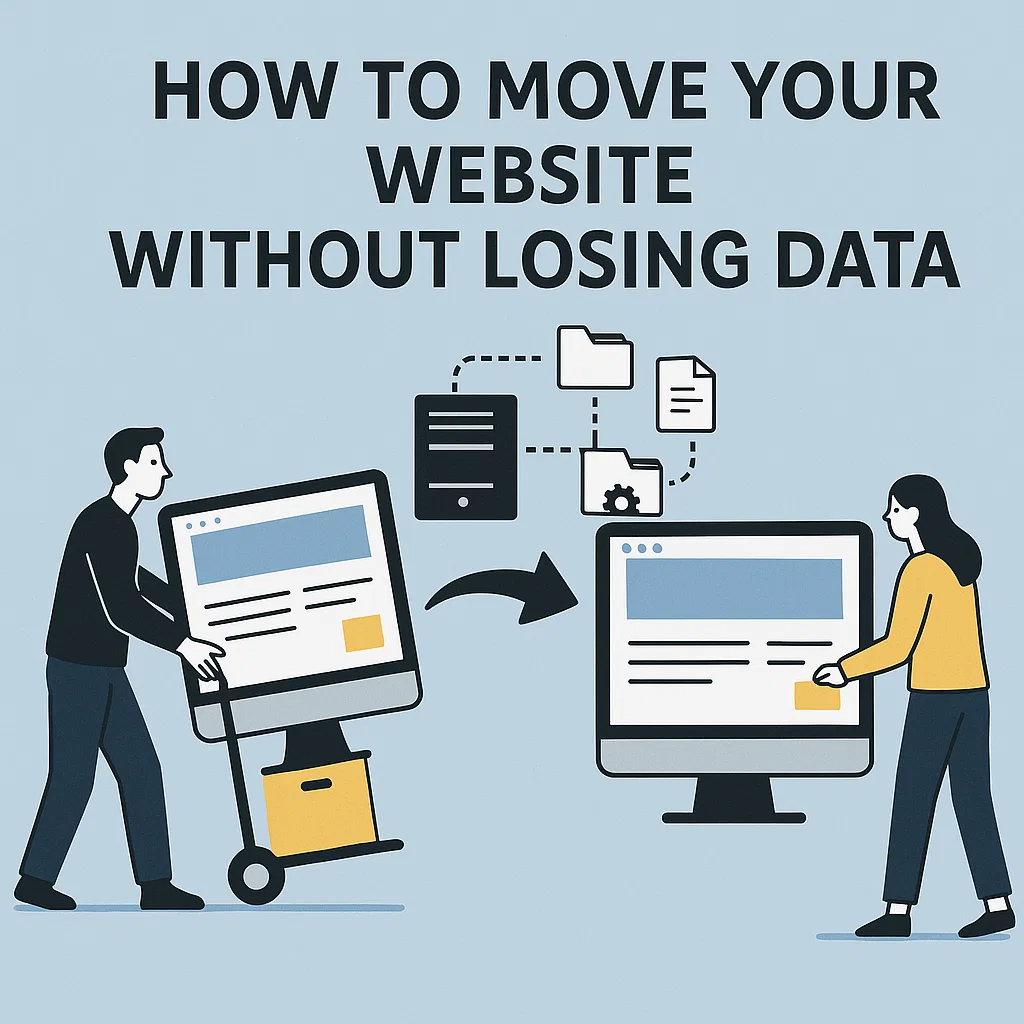
Moving a website from one hosting provider, domain, or server to another can feel like a nerve-wracking task. After all, your website contains years of hard work—blogs, customer information, design files, product pages, databases, and more. The last thing you want is to lose valuable data, break your site layout, or confuse your visitors.
But here’s the good news: with careful planning and the right approach, you can move your website safely without losing data or traffic. In this detailed guide, we’ll cover everything you need to know about migrating your website step by step.
Whether you’re a beginner blogger, a small business owner, or a developer handling client projects, this article will help you understand the entire process in simple terms.
Why Do You Need to Move a Website?
Before we dive into the steps, it’s important to understand why people move websites in the first place. Some of the most common reasons include:
- Better Hosting Services – Your current hosting might be slow, unreliable, or expensive.
- Rebranding – Changing domain names to match a new business identity.
- Website Redesign – Moving from one platform (like Blogger) to another (like WordPress).
- Business Growth – Upgrading to a hosting plan with more resources as your traffic grows.
- Security Concerns – Migrating to a host that offers stronger protection against hackers.
Whatever your reason may be, the ultimate goal is clear: to move everything—files, database, and settings—without affecting performance or losing precious content.
Summary Table: How to Move Your Website Without Losing Data
| Step / Task | Experience Needed | Tools / Resources | Estimated Time / Cost (₹) | References |
|---|---|---|---|---|
| Backup Your Website | Beginner–Intermediate | Hosting cPanel, Backup Plugins | 1–2 hrs / Free–1,500 | WordPress Docs, Hosting Guides |
| Export Database (MySQL) | Intermediate | phpMyAdmin, Hosting Panel | 30–60 mins / Free | cPanel Docs |
| Download Website Files (FTP) | Beginner–Intermediate | FileZilla, Hosting File Manager | 1–2 hrs / Free | Hostinger, GoDaddy |
| Choose New Hosting Provider | Beginner | Hosting Marketplaces (Bluehost, Hostinger) | – / 2,000–8,000 per year | Hosting Reviews |
| Upload Files to New Server | Intermediate | FTP, cPanel | 1–2 hrs / Free | TutorialsPoint |
| Import Database on New Host | Intermediate | phpMyAdmin | 30–60 mins / Free | MySQL Docs |
| Update Configuration Files | Intermediate | wp-config.php, CMS config | 30 mins–1 hr / Free | WordPress Codex |
| Test Website on Temporary Domain | Beginner | Hosting Staging / Preview Link | 1–2 hrs / Free | Hosting Panels |
| Update DNS / Domain Settings | Beginner–Intermediate | Domain Registrar (GoDaddy, Namecheap) | 4–24 hrs (propagation) / Free–500 | ICANN, GoDaddy Docs |
| Post-Migration Testing & Fixes | Intermediate | Browser Testing, Debug Plugins | 2–4 hrs / Free–2,000 | Developer Blogs |
Pre-Migration Checklist
Before you even touch a file or a database, you need to prepare. Think of this as your moving checklist before shifting homes.
✔️ Backup Everything – Always create a complete backup of your website (files + database).
✔️ Check Hosting Requirements – Make sure the new server supports the same technology (PHP version, MySQL, etc.).
✔️ Update DNS Details – Know how to change your domain’s nameservers or A records.
✔️ Inform Stakeholders – If your site is live with customers, let them know about potential downtime.
✔️ Test the New Host – Check speed, SSL certificate support, and bandwidth.
This preparation will save you from surprises later.
Step-by-Step Guide to Move Your Website Without Losing Data
Now let’s go through the actual process. I’ll break it down into clear, easy-to-follow steps.
Step 1: Take a Full Backup of Your Website
The golden rule: never move without a backup.
- Files Backup: Download all website files (HTML, CSS, PHP, images, etc.) from your old server using FTP or your hosting file manager.
- Database Backup: Export your database using phpMyAdmin or a tool provided by your host.
👉 Tip: If you’re using WordPress, plugins like UpdraftPlus, All-in-One WP Migration, or Duplicator make this process easier.
Step 2: Choose Your New Hosting Environment
Select a reliable hosting provider that suits your needs. For example:
- Shared Hosting – Good for beginners with small sites.
- VPS Hosting – More control and speed for growing businesses.
- Dedicated Hosting – For high-traffic enterprise sites.
- Cloud Hosting – Scalable and efficient (like AWS, Google Cloud, or DigitalOcean).
👉 Pro Tip: Check reviews for uptime, support, and scalability before committing.
Step 3: Upload Your Files to the New Host
Once you’ve backed up your files, upload them to your new hosting server.
- Connect via FTP (FileZilla) or use the hosting file manager.
- Place all files in the root directory (usually
public_html). - Ensure your configuration files (like
wp-config.phpfor WordPress) are updated with new database details.
Step 4: Import Your Database
After uploading files, it’s time to bring your database over.
- Log into phpMyAdmin on your new host.
- Create a new database.
- Import the
.sqlbackup file from your old host. - Update your configuration file with:
- Database name
- Database username
- Database password
👉 For WordPress users, update the wp-config.php file with the new details.
Step 5: Update DNS Settings
Your website won’t load from the new host until you update your DNS records.
- Log in to your domain registrar (GoDaddy, Namecheap, etc.).
- Update the nameservers or A records to point to the new hosting provider.
- Wait for DNS propagation, which can take 24–48 hours globally.
👉 During this time, some visitors may still see your old host while others see the new one.
Step 6: Test Your Website
Once DNS changes take effect, test your site thoroughly.
- Check all pages for broken links or missing images.
- Test forms, logins, and shopping carts (if eCommerce).
- Ensure your SSL certificate is working (https://).
- Run speed tests using tools like GTMetrix or Google PageSpeed Insights.
Step 7: Handle Email Migration
If your domain uses email accounts (e.g., info@yourdomain.com), set them up on your new host.
- Create the same email accounts.
- Update MX records if needed.
- Export and import old emails using tools like IMAP Sync.
Step 8: Redirects and SEO Considerations
If you’re changing domains (example: oldsite.com → newsite.com), SEO can be at risk.
- Set up 301 redirects from old URLs to new ones.
- Update your sitemap.xml and resubmit to Google Search Console.
- Update internal links where possible.
- Monitor search rankings to ensure traffic remains stable.
Step 9: Inform Users and Monitor
Once your migration is live:
- Send an update email or social media post to let users know.
- Monitor traffic and performance via Google Analytics.
- Keep your old hosting account for at least 1–2 weeks as a backup.
Common Mistakes to Avoid During Website Migration
Even experienced developers make mistakes during migration. Watch out for these pitfalls:
- Not Backing Up Properly – One small error could mean losing everything.
- Forgetting Email Accounts – Emails tied to the domain often get overlooked.
- Ignoring SSL Certificates – Make sure your HTTPS works immediately after migration.
- Skipping Redirects – This could destroy your SEO rankings overnight.
- Rushing the Process – Patience during DNS propagation is key.
Tools That Make Website Migration Easier
There are several tools and plugins designed to simplify the migration process:
- WordPress Plugins – Duplicator, All-in-One WP Migration, WP Migrate DB.
- Hosting Tools – Many hosts (like SiteGround, Bluehost, Hostinger) offer free migration services.
- FTP Clients – FileZilla for manual file transfer.
- Database Tools – phpMyAdmin for export/import.
FAQs About Moving Websites
1. How long does website migration take?
It depends on the size of your website and DNS propagation. Small sites can be migrated in a few hours, while large eCommerce sites may take a day or two.
2. Will my website go offline during migration?
If done carefully, downtime can be minimized to just a few minutes or even zero.
3. Can I migrate my website without technical skills?
Yes, many hosts offer free migration, or you can use beginner-friendly plugins.
4. What about SEO after migration?
As long as you set up redirects and update Google Search Console, your SEO should remain stable.
5. Should I keep my old hosting?
Yes, for at least 1–2 weeks, until you’re 100% sure everything is working on the new host.
Final Thoughts
Moving a website may sound intimidating, but with a structured approach, it’s entirely manageable. The key is planning, backups, and testing. By following the steps outlined above, you can ensure a smooth migration without losing data, breaking your design, or hurting your SEO rankings.
Whether you’re upgrading to a better host, rebranding your business, or simply improving performance, this migration process will help you transition seamlessly.
